Coach View #
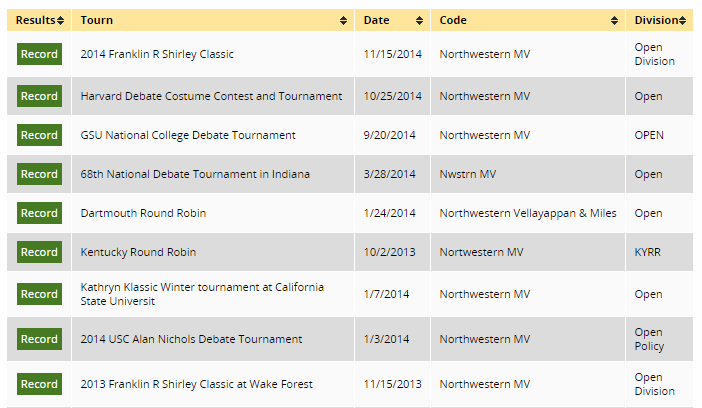
Coaches can log into their Tabroom account, and from the main landing page (click your email at the top of the screen), and then click the [Results] tab (see image below).

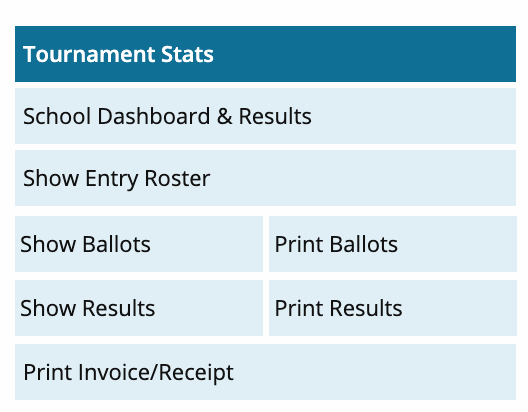
Next, click the blue [Results] button to the right of a given contest. You will then see overall summary statistics for the contest/tournament. On the right-hand sidebar, you will see several buttons.
School Dashboard & Results will show you all your contestants, and you can click the little document icon button on the right-hand side of each row for an entry.
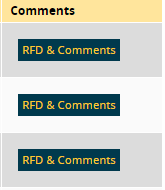
Show Ballots will give you a list of each student for that contest, along with judges’ comments.
Print Ballots will create a running PDF document of all the judges’ comments for all your entries.
Student View #
Students in your main roster of competitors need to be linked to a Tabroom account. If your student already has an account, navigate to the Competitors tab on your school page, click the student’s name, and on the profile editing page, to the right of their name above the other information fields, enter the email address that corresponds to the Tabroom.com account they created and click the link button.
For students without a Tabroom account, they can navigate to the Tabroom.com “Sign Up” page and create an account as a Non-NSDA member (bottom part of sign-up screen).
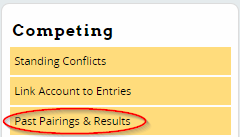
Students should navigate to their account landing page (click email at top) and will have a list of recent results. They can also click the link for “Past Pairings and Results” to view the list. Then, they click the “Record” link next to the appropriate tournament.