
Thank you for participating in WISDAA professional development. We have designed the culminating assessment as an authentic representation of constructive evaluation. We have partnered with the online SpeechWire platform, which we use throughout the season for adjudicators to type comments at in-person festivals as well view videos and evaluate for virtual contests.
Follow these steps:
Open a tab/window in your web browser (e.g., Google Chrome, Safari, Edge, or Firefox) and navigate to live.speechwire.com and log in with the email you used to register for the course and the password SpeechWire.com sent you (you may need to do a password reset).
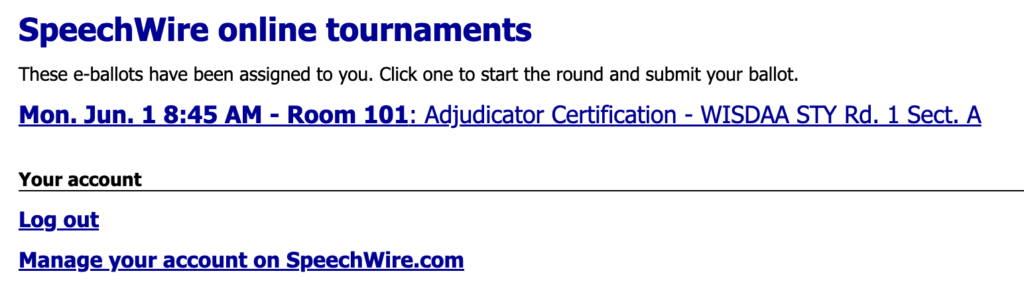
After logging in, you should see a screen showing your “assigned” round. Click the link to access this round:
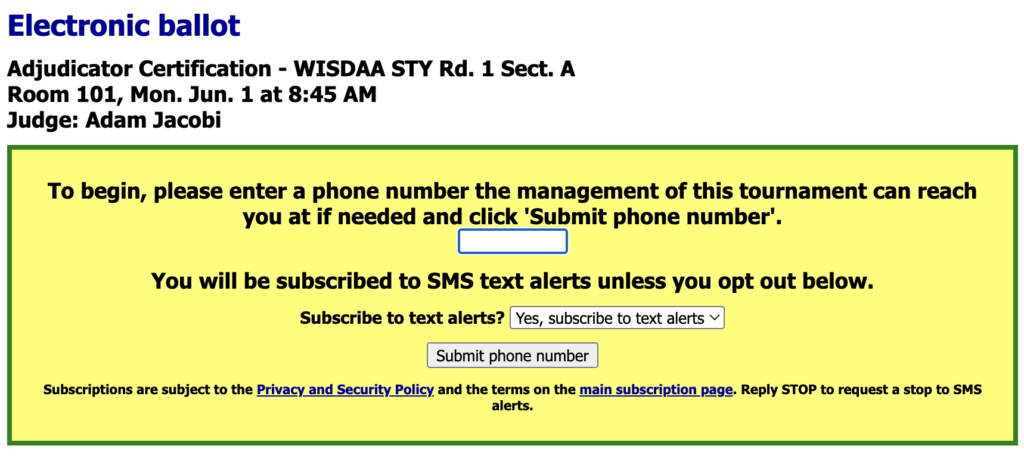
You will then see a yellow box where you will put in your phone number, a feature baked-in to SpeechWire to allow contest managers to contact you if they have questions about your evaluation.
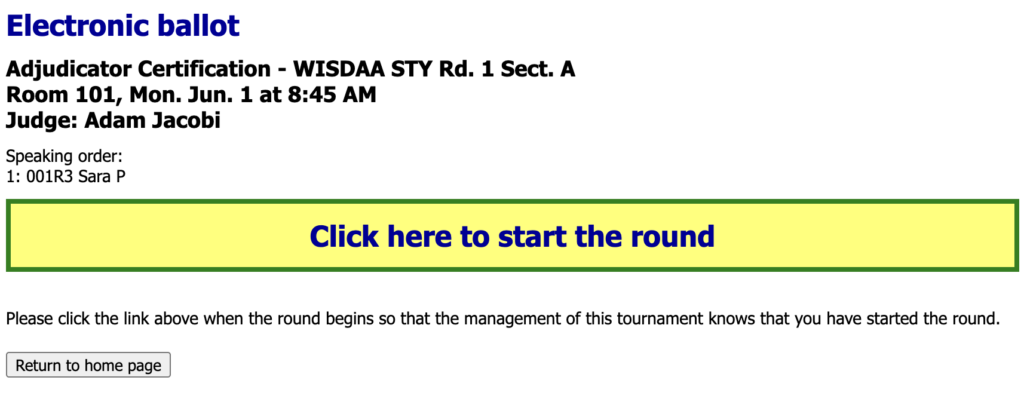
Next, you will see the “ballot” that includes a list of contestants. For the purposes of the end-of-workshop assessment, there’s just one contestant. Click “Click here to start the round.”
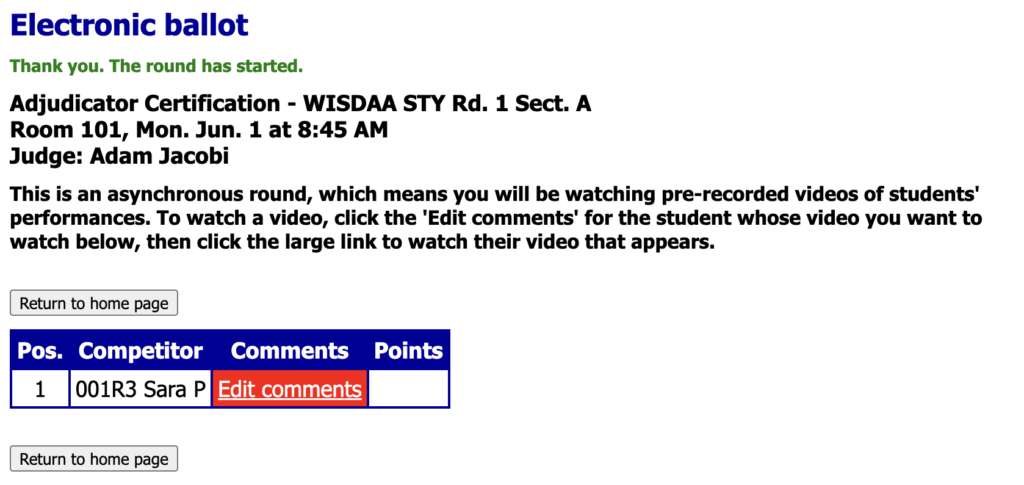
Once you “Start” the round, your screen grants you access to add/edit comments for each contestant (in this case, just one contestant). Click the link to Edit comments (red color until you submit, and then it turns green when you are done).
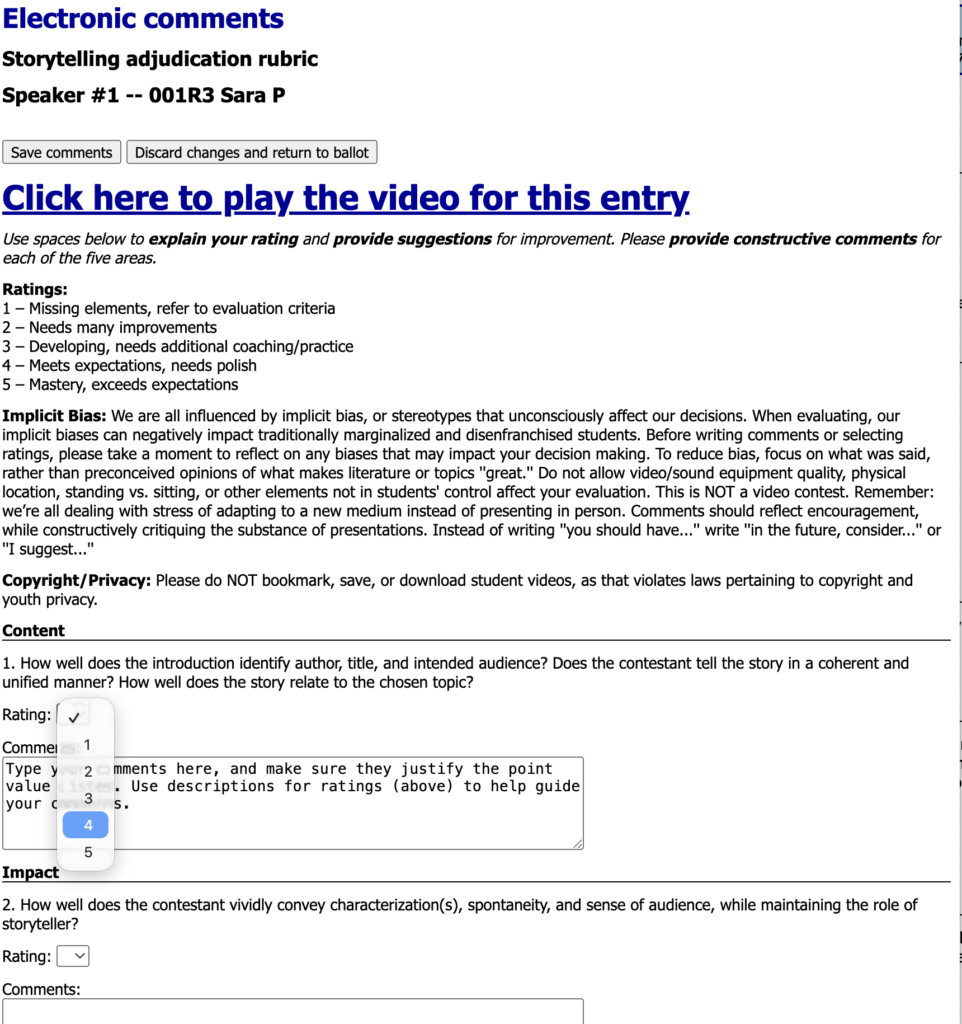
There are several features on the evaluation screen. Note the ratings at the top, as well as other guidance on bias and copyright/privacy. At a contest, if a student has an accessibility need, that will be highlighted at the top of the screen.
Next, you will see four evaluation criteria. Please select a score of 1-5 points for each area, and then type comments in each area to justify your scores.
At the bottom of the screen, please type the length of time of the presentation, and note any penalties, if applicable.
Be sure to Save comments when done.
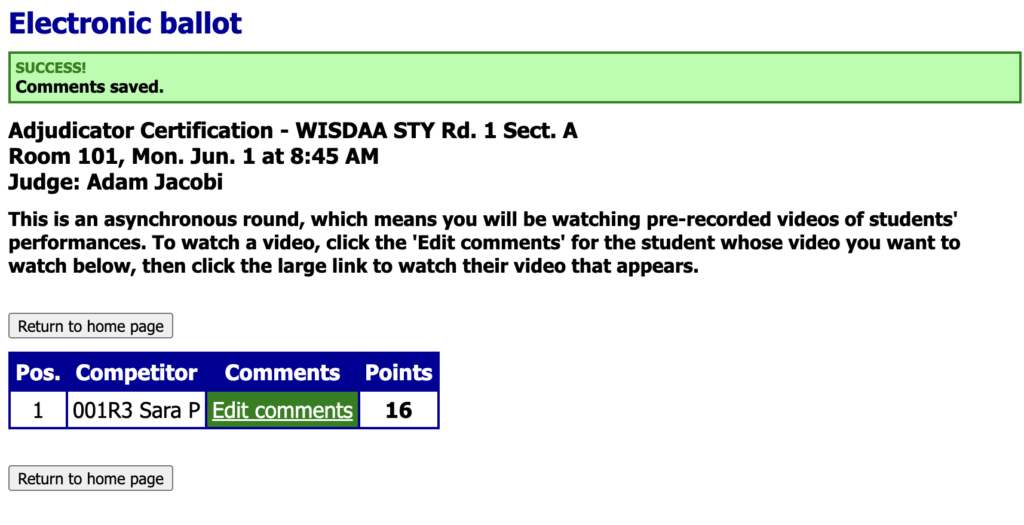
After you have saved, SpeechWire will return you to the previous screen, displaying the point total for the evaluation, with the “Edit comments” box turning green to signify you are finished.
Please return to the course and review next steps!


